Labor Day starts with $70+ in savings on Coursera Plus. Save 40% for 3 months.
How to Do a Google Sheets Download
Learn how to download your Google Sheets in different file types, so you can access, share, or modify your data in the formats you need.
![[Featured Image] A person stands outside their office building and uses a tablet to download Google Sheets for a project.](https://d3njjcbhbojbot.cloudfront.net/api/utilities/v1/imageproxy/https://images.ctfassets.net/wp1lcwdav1p1/CecBIiQqkTpbLuDmfIf0B/fbafd4109c731b270be1f844d8d84635/GettyImages-1729403692-converted-from-jpg.webp?w=1500&h=680&q=60&fit=fill&f=faces&fm=jpg&fl=progressive&auto=format%2Ccompress&dpr=1&w=1000)
Key takeaways
To download Google Sheets, follow these five steps: Open the sheet, click File, hover over Download, choose your file type, and download the file.
If you want to download Google Sheets to Excel, choose Microsoft Excel (.xlsx) as your download option, or select from other formats like PDF, CSV, TSV, or OpenDocument (.ods).
You can download Google Sheets for free for individual use, but organizations need a paid Google Workspace plan [1].
Learn how to execute a Google Sheets download, which file types you can choose from, and common errors to avoid. If you're ready to start building data analytics skills, consider enrolling in the Google Data Analytics Professional Certificate. During this nine-course series, you'll have an opportunity to work with various tools, including spreadsheets, data visualization, and Tableau, to clean, organize, and present data.
Why consider a Google Sheets download
Working with Google Sheets may provide many benefits, including the ability to access your materials from anywhere you can log in to your Google Drive account. Keeping your files on Google Drive can make it easy to share files, convert formats, and collaborate with others.
If you would like to switch your Google Sheets file type to another format, one way to do this is by downloading your Google Sheets.
Read more: Using Spreadsheet Formulas: 5 Jobs That Require This Skill
Is Google Sheets free?
Google Sheets is free for individuals. If you’re considering adding it to your organization, the cost of a one-year subscription to Google Workspace is $7 per month per user for the Business Starter plan, $14 per month per user for the Business Standard plan, $22 per month per user for the Business Plus plan, and a customizable fee for the Enterprise plan [1]. Your Google Workspace subscription includes several other services beyond Google Sheets, such as business email, Drive storage, Gemini AI, and many others.

How to download a Google Sheet
Here is a quick guide on how to download Google Sheets:
Open your Google Sheet
Click the File tab
Hover over the File > Download button
Choose the file type you would like
Click and download the file
Now, let's go over each step in more detail.
1. Open your Google Sheet
First, open the Google Sheet you would like to download. If you don't have a specific data set, use a sample template provided by Google Sheets or create your own to follow along with this tutorial.
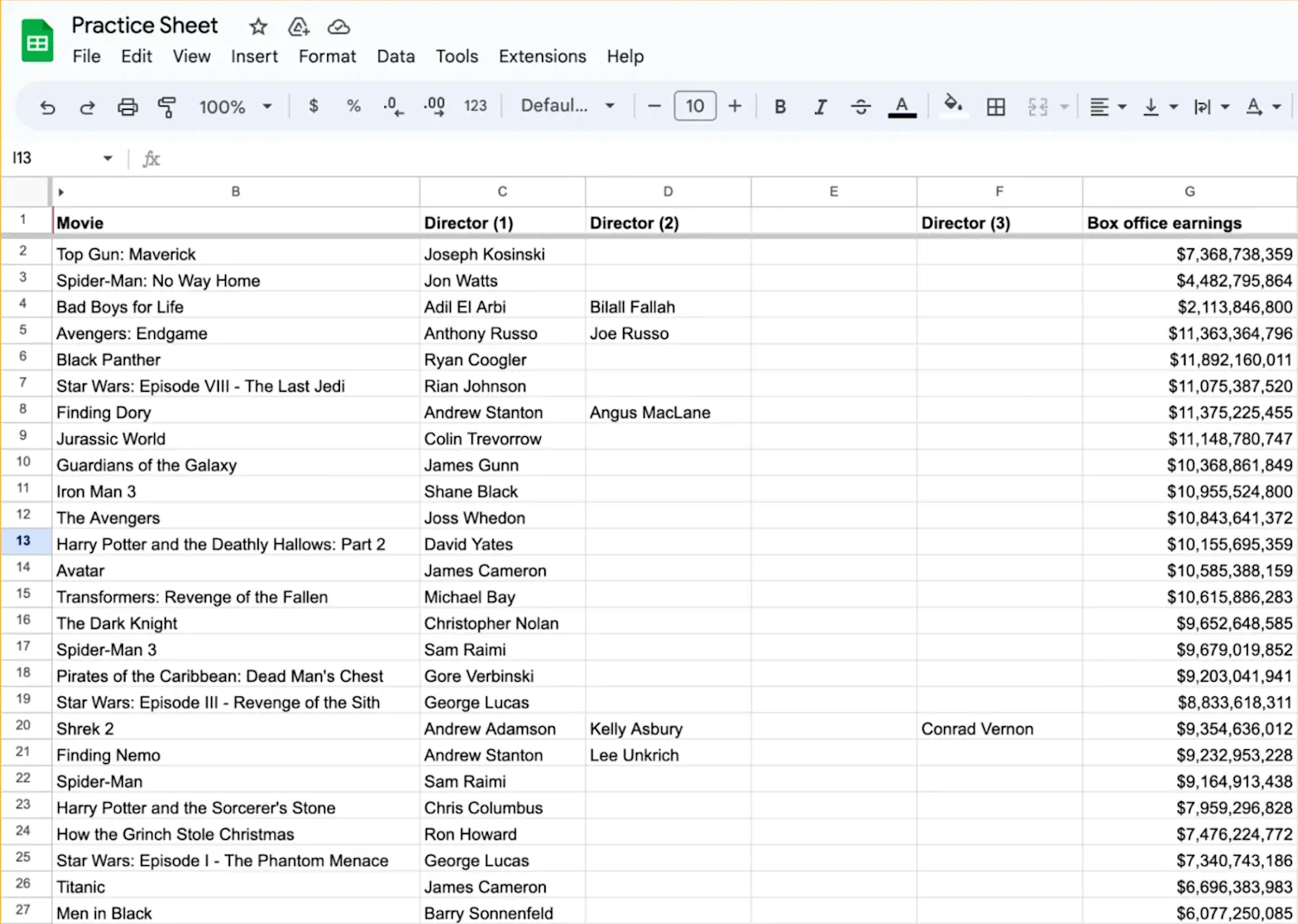
2. Click the 'File' tab
In the upper left corner of your Google Sheet, click the File tab. A drop-down menu should appear.
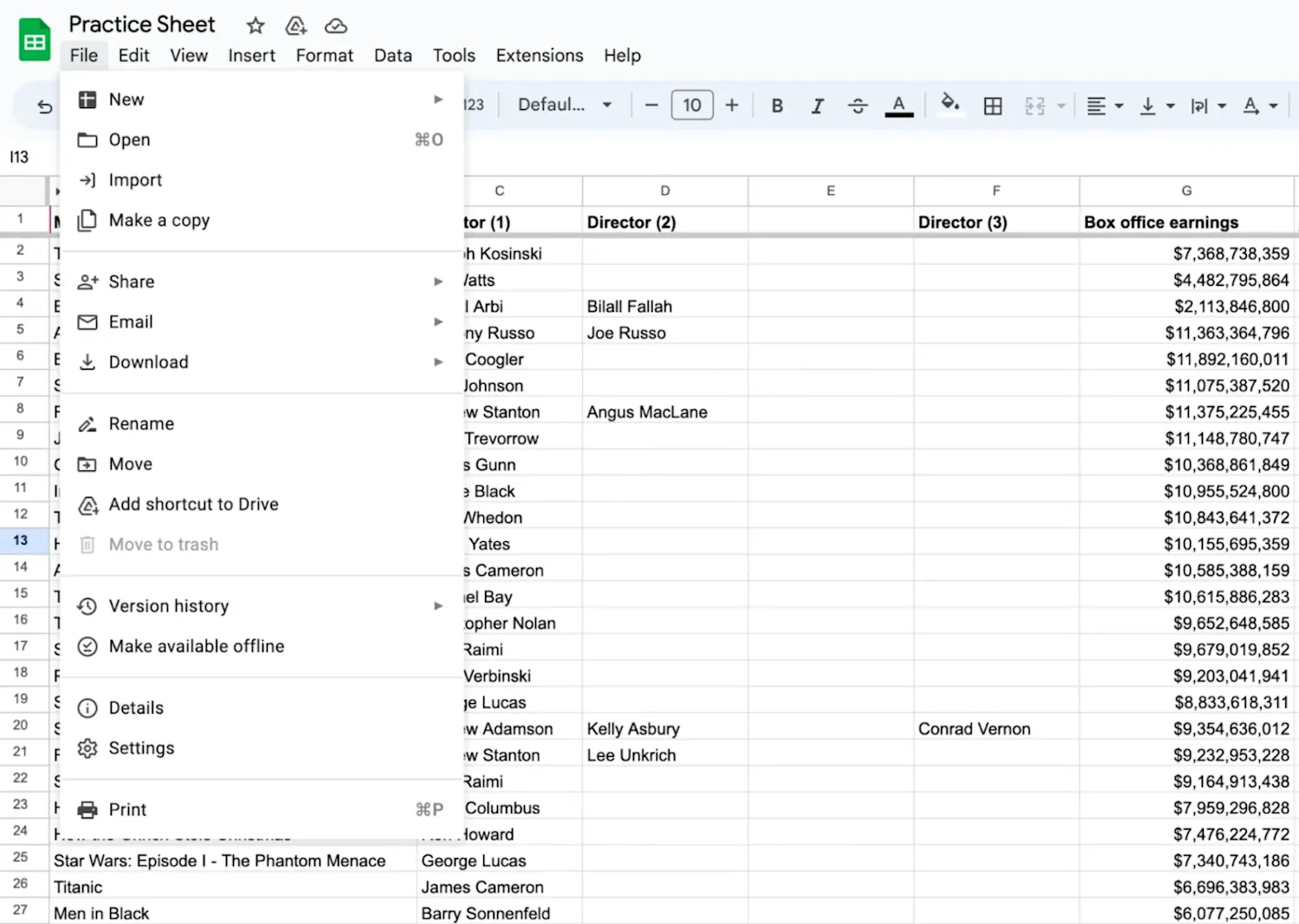
3. Hover over the 'Download' button
If you hover over the File > Download button, several file type options will appear to the right.
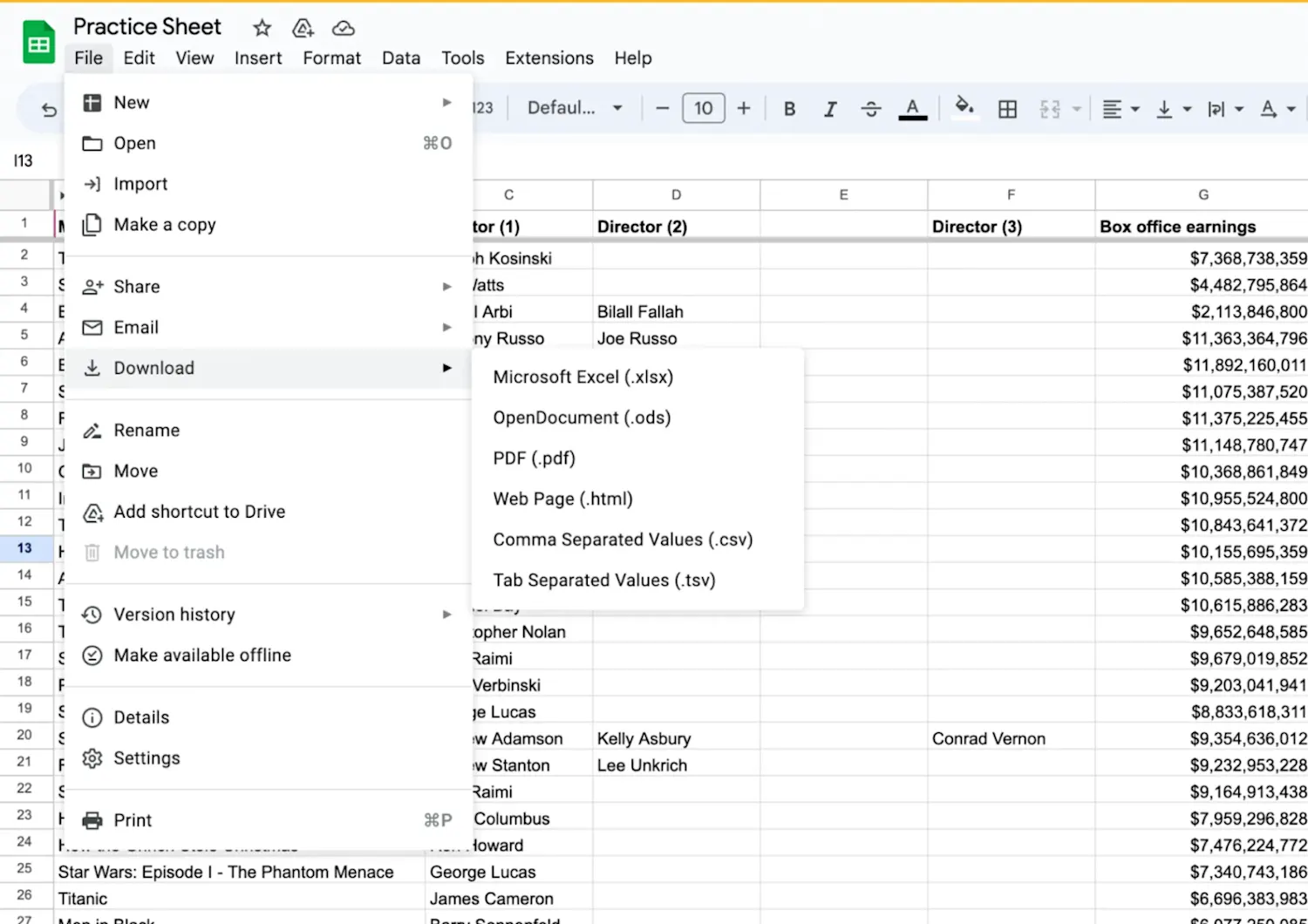
4. Choose your file type
Once you select your file type, the file will download automatically to your computer. As of August 2026, you can choose from the following file types:
OpenDocument (.ods)
PDF (.pdf)
Comma-separated values (.csv)
Tab-separated values (.tsv)
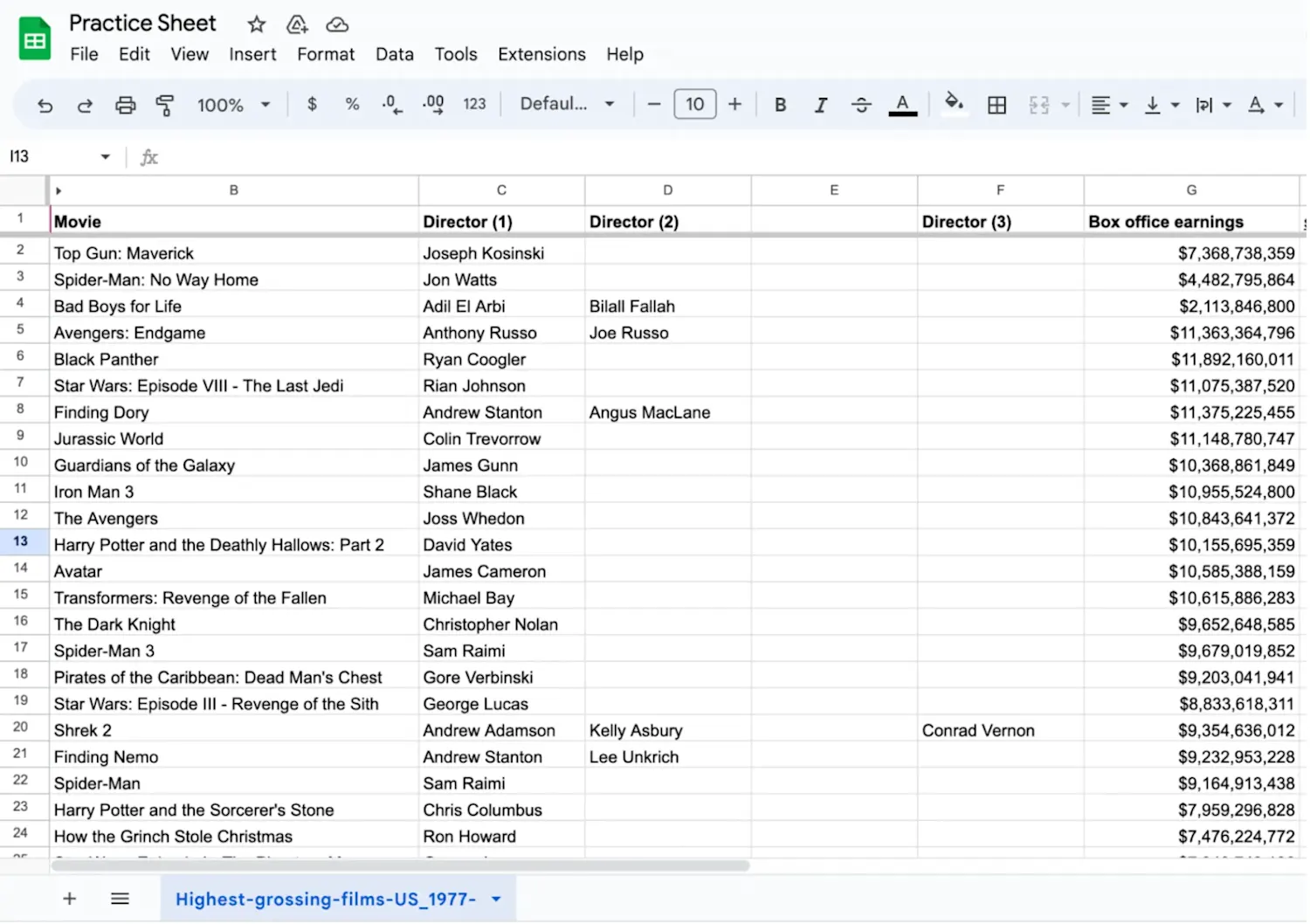
From here, you can re-save the file to your preferred folder or drive on your computer if needed. On some computers, the downloaded file will appear at the bottom of your Google Sheets screen in the lower left corner, as shown below. However, not all computers will have the same format.
Common errors when downloading your Google Sheet
In some cases, you may experience issues while downloading your Google Sheet. One problem users face is a network error during download. This error often occurs when downloading larger files from Google Drive. If you experience this error, you should check whether antivirus software or unwanted programs are interfering with your download process. These applications may mistakenly identify Google Drive's downloading operation as a potential threat and block it.
If you're unable to download data from your school or work account, the problem might be access restrictions imposed by your Google Workspace administrators. Your administrators have control over whether you can download data from different products. If you encounter this issue, you should contact your administrator to address it.
Even if you are not on a school or work computer, you might have trouble downloading your Google Sheets file if you do not have permission to download that specific Sheet. This can be changed in Share > Settings > General access by the owner of the file.
Can you get Google Sheets for free?
Google Sheets is free for individuals. If you’re considering adding it to your organization, the cost of a one-year subscription to Google Workspace is $7 per month per user for the Business Starter plan, $14 per month per user for the Business Standard plan, $22 per month per user for the Business Plus plan, and a customizable fee for the Enterprise plan [1]. Your Google Workspace subscription includes several other services beyond Google Sheets, such as business email, Drive storage, Gemini AI, and many others.
Explore free data analytics resources
Subscribe to Career Chat, our weekly newsletter, to keep up with emerging technologies and practices. Then check out these free data analytics resources:
Watch a YouTube video: What is Data Wrangling? The Key to Clean Data
Prepare for an interview: Data Analyst Interview Questions & Prep Guide
Hear from an expert: 7 Questions with a Data Analytics Professor
Accelerate your career growth with a Coursera Plus subscription. When you enroll in either the monthly or annual option, you’ll get access to over 10,000 courses.


Article sources
Google Workspace. "Try Google Workspace for 14 days, https://workspace.google.com/pricing.html." Accessed August 22, 2026.
Keep reading
- April 15, 2026
- August 24, 2026
- August 19, 2026
- June 20, 2026
- August 18, 2026
- June 20, 2026
Coursera Staff
Editorial Team
Coursera’s editorial team is comprised of highly experienced professional editors, writers, and fact...
This content has been made available for informational purposes only. Learners are advised to conduct additional research to ensure that courses and other credentials pursued meet their personal, professional, and financial goals.