How to Create a Google Sheets Pivot Table
Explore how to create pivot tables in Google Sheets, including limitations you should be aware of.
![[Featured Image] A businessperson is walking in a warehouse with a colleague who is holding a tablet displaying a Google Sheets pivot table.](https://d3njjcbhbojbot.cloudfront.net/api/utilities/v1/imageproxy/https://images.ctfassets.net/wp1lcwdav1p1/74X3HPg0BlC1KyEnOjQez3/4afa0d37d621d165d9dd19f9b326027e/GettyImages-2182879388.webp?w=1500&h=680&q=60&fit=fill&f=faces&fm=jpg&fl=progressive&auto=format%2Ccompress&dpr=1&w=1000)
Key takeaways
To create a pivot table in Google Sheets, you take steps such as highlighting your data, adding your categories, and formatting the table.
You can use pivot tables to organize aspects of your personal life, such as managing a budget, creating guest lists for social occasions, and tracking your fitness goals.
Google Sheets limits pivot tables to analyzing data within a single sheet and lacks advanced calculation options.
You can use data visualization tools or other specialized software if you require more advanced customizations or visualizations.
Explore how to make a pivot table in Google Sheets and determine if it’s right for your needs. If you’re ready to develop your skills in data analytics, enroll in the Google Data Analytics Professional Certificate. In as little as six months, you can learn about data literacy, data validation, spreadsheet software, R programming, and more.
What is a pivot table in Google Sheets?
Pivot tables in Google Sheets are a dynamic tool that can help you get essential data insights while also summarizing and analyzing information. By grouping and summarizing data, pivot tables provide a clear overview of patterns, trends, and relationships within your data.
What is a pivot table used for?
When working in the finance industry, you can use a pivot table to create financial performance reports, identify trends, and make data-based recommendations to your employers. The retail sector utilizes pivot tables to understand consumer behavior and improve marketing plans. You can also use pivot tables to organize aspects of your personal life, such as managing a budget, creating guest lists for social occasions, and tracking your fitness goals.

Steps to create a Google Sheets pivot table
When creating a pivot table in Google Sheets, you will follow these steps:
Open your Google Sheet.
Highlight your data.
Go to Insert > Pivot table.
Create your pivot table.
Drag and drop the categories to include in your pivot table.
Format your pivot table.
Now, let’s go further into each step.
1. Open Google Sheets.
Open your Google Sheets in your web browser.
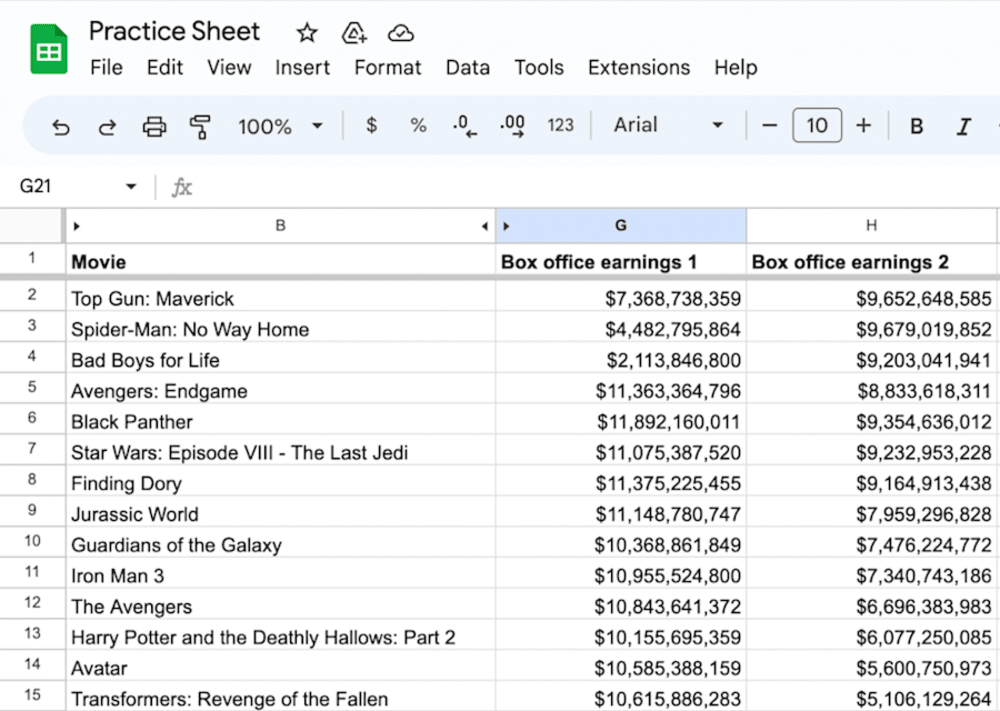
2. Select your data.
Next, check that your data is organized in columns and rows with headers in the first row. Each column should have a clear heading that describes the data it contains.
Select the range of cells that contains your data. Ensure you’ve chosen all the columns you want to include in your analysis. It's essential to select the entire data range, including headers.
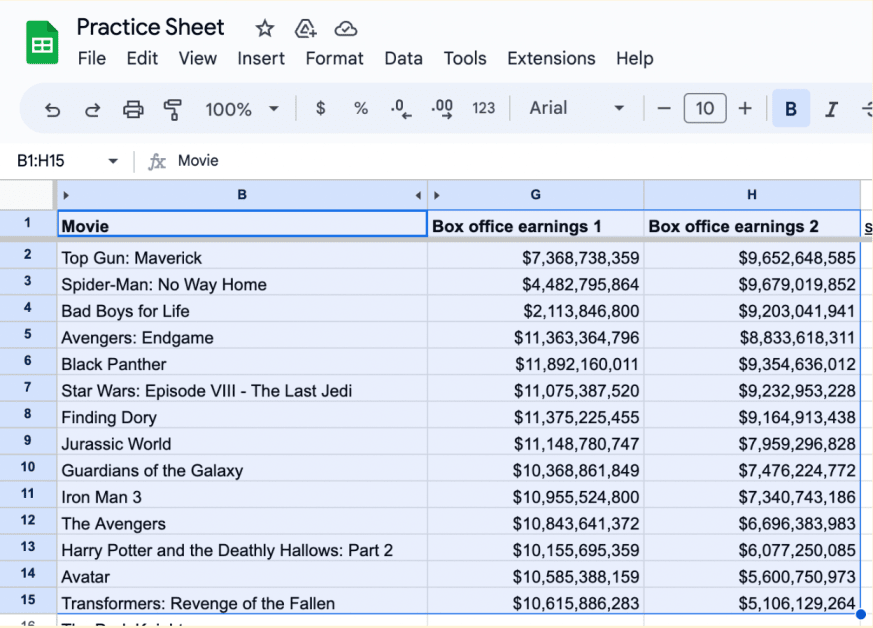
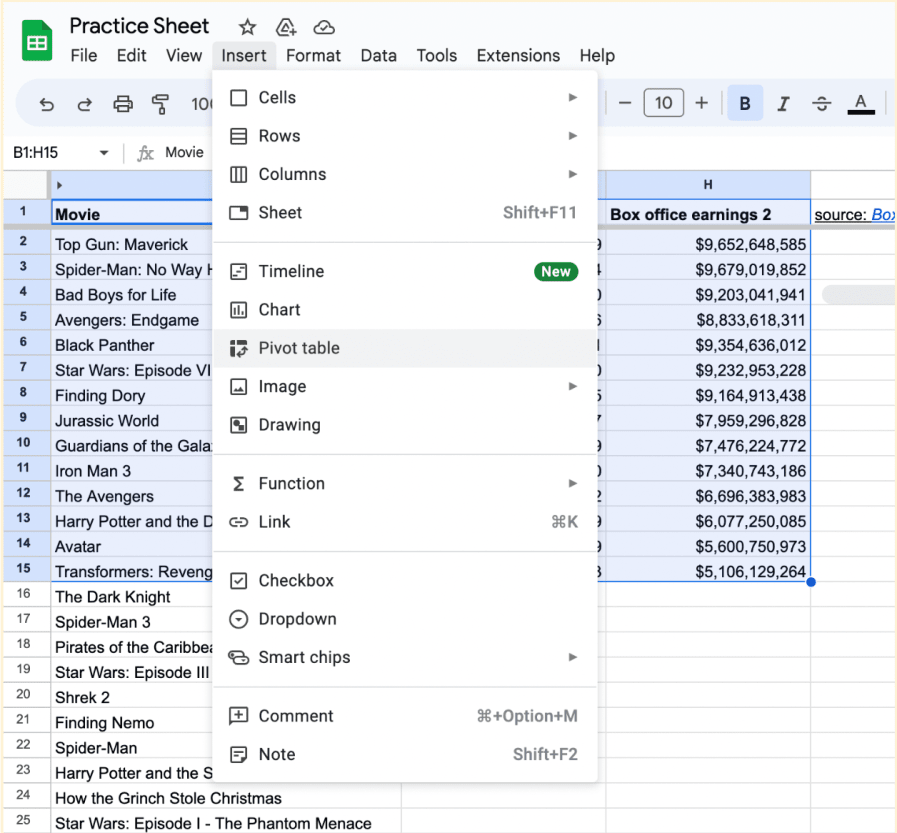
3. Access the “Pivot table” option in the “Insert” menu.
Once you have selected the data range, click on the Insert menu at the top and choose Insert > Pivot table.
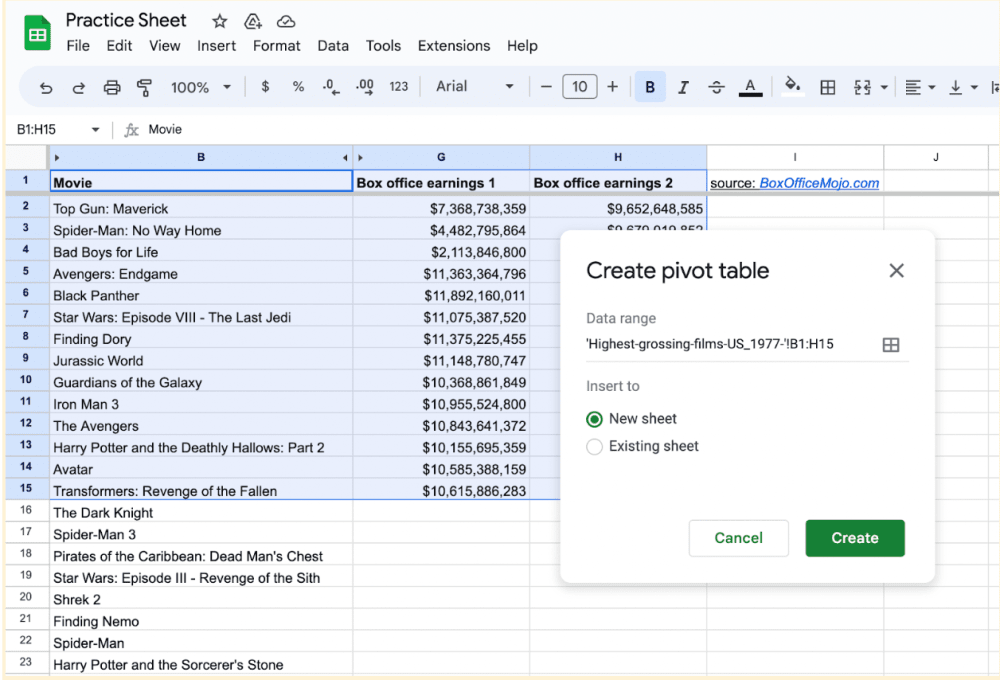
4. Create your pivot table.
Once you click Insert > Pivot table, an editor will open. You can select “New Sheet” or “Existing Sheet” as the placement for your pivot table. You can also edit the data range included. In this example, we will opt to add our pivot table to the new sheet.
5. Configure your pivot table.
In the pivot table editor, you'll see several sections: Rows, Columns, Values, and Filter. Drag and drop the headers from your data on the right into the respective sections based on how you want to analyze and summarize your data.
Rows: Choose the column headers you want to group and display as rows in the pivot table.
Columns: Select the column headers you want to group and display as columns in the pivot table.
Values: Choose the column headers containing the data intended for summarizing. You can select different aggregation functions, such as sum, count, average, or custom formulas.
Filter: Add filters to narrow down the data included in the pivot table based on specific criteria.
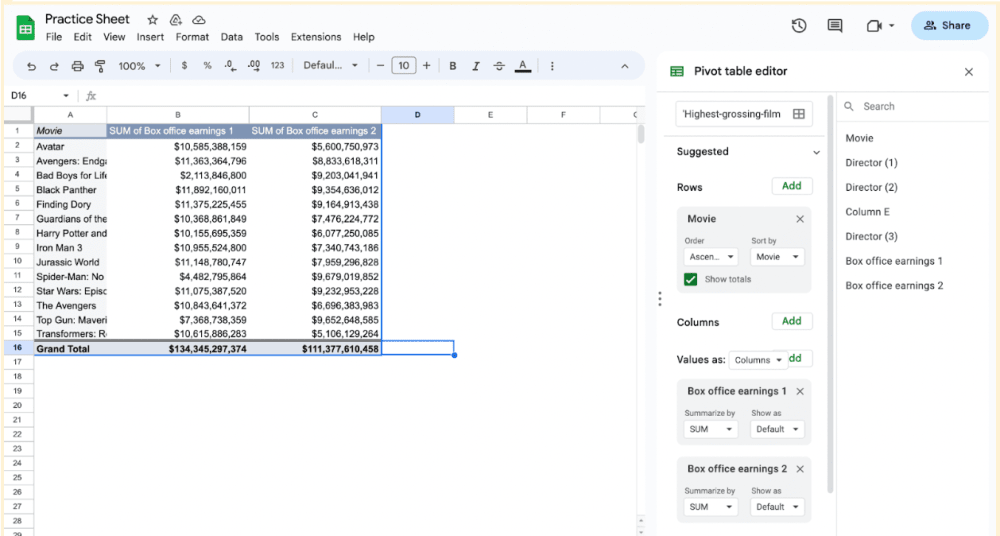
6. Customize your pivot table.
Customize your pivot table to enhance its readability and insights. You can experiment with different configurations, such as rearranging row and column headers or changing your aggregation functions in the Value section.
Limitations and alternatives
While pivot tables in Google Sheets are powerful data analysis and summarization tools, it's important to be aware of their limitations. Consider the following factors:
Limited to a single sheet: Google Sheets limits pivot tables to analyzing data within a single sheet. If your data is spread across multiple sheets, you may need to consolidate it into a single sheet before creating a pivot table.
Lack of advanced calculations: If you require statistics beyond what Google Sheets or Excel can provide, consider using dedicated statistical software or scripting languages like R or JavaScript.
Limited customization: Consider using data visualization tools like Looker Studio or other specialized software if you require more advanced customization or visualizations.
Read more: How to Use Excel
Discover more about Google Sheets with our free resources
Join Career Chat on LinkedIn to stay current with the latest trends in your career field. Continue learning more about Google Sheets with our other free digital resources:
Watch on YouTube: How to Highlight Duplicates in Google Sheets
Learn the filter function: How to Use the Google Sheets Filter
Whether you want to develop a new skill, get comfortable with an in-demand technology, or advance your abilities, keep growing with a Coursera Plus subscription. You’ll get access to over 10,000 flexible courses.



Keep reading
- August 27, 2025
- May 1, 2026
- April 1, 2026
- January 13, 2026
- January 23, 2026
- May 28, 2026
Coursera Staff
Editorial Team
Coursera’s editorial team is comprised of highly experienced professional editors, writers, and fact...
This content has been made available for informational purposes only. Learners are advised to conduct additional research to ensure that courses and other credentials pursued meet their personal, professional, and financial goals.